Progress log
Initial
- Installed ubuntu 24.04 all default
- installed vim, neofetch, curl, git, qrencode
- connected with github
NAS connection
sudo apt install cifs-utils
sudo apt install nfs-common
Gnome Tweaks
sudo apt-get install gnome-tweaks
Installing fonts
sudo apt install ttf-mscorefonts-installer
sudo fc-cache -f -v
Install windows compatibility layer
- Get your VERSION_CODENAME
cat /etc/os-release
- Add the wine repository
sudo mkdir -pm755 /etc/apt/keyrings
wget -O - https://dl.winehq.org/wine-builds/winehq.key | sudo gpg --dearmor -o /etc/apt/keyrings/winehq-archive.key -
- Add the sources files for “noble”
sudo wget -NP /etc/apt/sources.list.d/ https://dl.winehq.org/wine-builds/ubuntu/dists/noble/winehq-noble.sources
- Update
sudo apt update
- Install stable version
sudo apt install --install-recommends winehq-stable
install total commander to test the wine is working
is working
install zen software using wine to see if it is working
testing it with ZENblack_2011SP4_2012… threw a couple of errors did not work, trying to do it with the official lite version looks it works, waiting for some confirmation password saved in mozzilla browser
Installing deb packages
sudo dpkg -i /path/to/package.deb
Academic tools
Install Zotero
There is a package instead of the tarball, trying to use this
curl -sL https://raw.githubusercontent.com/retorquere/zotero-deb/master/install.sh | sudo bash
sudo apt update
sudo apt install zotero
This worked, not sure wha
Install Fiji
link to the download, downloaded the stable version for linux placed it in Document/Programs/ tried to make an icon on a desktop, not sure it works
Create a desktop entry file to make the application launchable from the desktop. Use a text editor to create a file named fiji.desktop in the ~/.local/share/applications/ directory with the following content:

[Desktop Entry]
Name=Fiji
Type=Application
Exec=~/Fiji.app/ImageJ-linux64
Icon=~/Fiji.app/images/icon.png
Categories=Science;ImageTools;
Terminal=false

Save the file and ensure it is executable by running chmod +x ~/.local/share/applications/fiji.desktop.
 After creating the desktop entry,
Install Cell Profiler
Official page of cell profiler project link Is installed through the wine compatibility layer
- Download the windows 10/11 version
- Double click and go through installation
- Requires confirmation of some other download stuff
- To start it from terminal, find where it is located:
/home/<user>/.wine/drive_c/Program\ Files/CellProfiler/CellProfiler.exe - Set alias in your ~/.bashrc
alias cellprofiler="wine /home/<user>/.wine/drive_c/Program\ Files/CellProfiler/CellProfiler.exe"
Works
To make a clicable icon this is suggested by chatGPT
[Desktop Entry]
Name=CellProfiler (Wine)
Comment=Cell image analysis via Wine
Exec=wine "/home/vld/.wine/drive_c/Program Files/CellProfiler/CellProfiler.exe"
Icon=wine
Terminal=false
Type=Application
Categories=Science;
Miniconda installation for bioinformatics
mkdir -p ~/miniconda3
wget https://repo.anaconda.com/miniconda/Miniconda3-latest-Linux-x86_64.sh -O ~/miniconda3/miniconda.sh
bash ~/miniconda3/miniconda.scd ~h -b -u -p ~/miniconda3
rm ~/miniconda3/miniconda.sh
conda init --all --dry-run
Example of installing some tools to search for domains
# after checnking the modifications
source ~/miniconda3/bin/activate
conda create -n domainsearch python=3.11
conda activate domainsearch
conda install -c bioconda seqkit
conda install -c bioconda interproscan
conda install -c bioconda blast
Virtual environments
Virtual environments venv
sudo apt install python3-venv -y
sudo apt install python3-venv -y
is working
make a dedicated folder for venvs
mkdir -p ~/.venvs
csvkit in venv
Install it
move to .venvs
python3 -m venv csvenv
source csvenv/bin/activate
csvenv\Scripts\activate
pip install csvkit
check it is working
csvcut --help
get in and out of it
source /home/vld/.venvs/csvenv/bin/activate
deactivate
make a wrapper for it to work in its enviroment
mkdir -p ~/.local/bin
Add following to .bashrc
export PATH="$HOME/.local/bin:$PATH"
Create the wrapper in ~/.local/bin
for cmd in csvclean csvcut csvformat csvgrep csvjoin csvjson csvlook csvpy csvsort csvstack csvstat; do
    cat << EOF > ~/.local/bin/$cmd
#!/bicat n/bash
/home/vld/.venvs/csvenv/bin/$cmd "\$@"
EOF
    chmod +x ~/.local/bin/$cmd
done
Test it works
csvcut --help
works
App stores
flatpak
sudo apt install flatpak -y
flatpak remote-add --if-not-exists flathub https://flathub.org/repo/flathub.flatpakrepo
Internet
Web-browser brave
curl -fsS https://dl.brave.com/install.sh | sh
worked immediately, installed zotero connector and vimium
worked through the whatsdesk via snap store, but stopped working on 8/1/2026 link to article
Note: Is missing fonts, when trying to attach or download documents displays just squares instead of letters
Whatsie
Recomended on ubuntufree.com
sudo snap install whatsie
Telegram app
got it from brave ai recommended the ppa repository installation as the snap installation image has a limited usability
sudo add-apt-repository ppa:atareao/telegram
sudo apt update
sudo apt install telegram
Works
E-obcanka
Using a smart card reader AK-CR-03BKV2
link to the website describing installation
CHeck if the usb device is recognized
lsusb
should list something with a smart reader
Install the necessary pacakges
sudo apt update
sudo apt install pcscd pcsc-tools libccid
Was necessary to run
sudo apt --fix-broken install
Start the service
sudo systemctl enable pcscd
Install the downloaded deb package
navigate to the downloads folder
sudo dpkg -i eObcanka.deb
Works
When it did not work again:
If it does not work, check if the drivers are installed
dpkg -l | grep pcscd
Then uninstall eobcanka and install the tools, then reinstall the package FInd the name of the package
sudo dpkg -l | grep -i eobcanka
sudo dpkg -P eobcanka
sudo apt install pcscd pcsc-tools
sudo dpkg -i eObcanka.deb
Check the daemon is running
sudo systemctl restart/status pcscd
NOw it works
MUNI and FNUSA compatibility
Install eduVPN for muni access
curl --proto '=https' --tlsv1.2 https://docs.eduvpn.org/client/linux/install.sh -O
bash ./install.sh
Is working
Install openVPN for FNUSA
sudo apt-get install network-manager-openvpn-gnome
works
Access the shared folder on the CELLIM server
Check reachability first
ping -c 2 <server-ip-or-name> # check reachability
make a mount point
sudo mkdir -p /mnt/odeon
Connect using manual typig a password
sudo mount -t cifs //<server>/<share> /mnt/winshare -o username=<user>,password='<pass>',vers=3.0
Next steps: make a script to log in without exposing the password in the script
Flash drives not mounting
Quite often the flash drive will not mount automatically
If it is a ntfs filesystem, can be fixed (also other ones, but have just this one problematic)
Identify all the devices/disks
sudo lsblk -f
gives you the sda1, sdb1 or whatever with the filesystem type
Try to mount manually
sudo mounte -t ntfs /dev/sda1 /media/
Run the ntfsfixer
sudo ntfsfix /dev/sda1
Mount again
sudo mounte -t ntfs /dev/sda1 /media/
Audio and video
ffmpeg
Essential tool for command line video conversions, cutting speeding up etc.
Is not by default
sudo apt install ffmpeg
OBS
Tool for recording and streaming video
sudo add-apt-repository ppa:obsproject/obs-studio -y
sudo apt update
sudo apt install obs-studio -y
OBS launches but does not run Error log
19:55:50.493: >>> new qsv encoder
19:55:50.493: [qsv encoder: 'simple_video_recording'] settings:
19:55:50.493: 	codec:          H.264
19:55:50.493: 	rate_control:   ICQ
19:55:50.493: 	ICQ Quality:    23
19:55:50.493: 	target_usage:   TU4
19:55:50.493: 	profile:        high
19:55:50.493: 	keyint:         0
19:55:50.493: 	latency:        normal
19:55:50.493: 	b-frames:       3
19:55:50.493: 	fps_num:        60
19:55:50.493: 	fps_den:        1
19:55:50.493: 	width:          1920
19:55:50.493: 	height:         1080
19:55:50.493: [qsv encoder: 'simple_video_recording'] debug info:
19:55:50.495: Failed to initialize MFX
19:55:50.495: [qsv encoder: 'msdk_impl'] Specified object/item/sync point not found. (MFX_ERR_NOT_FOUND)
19:55:50.495: [qsv encoder: 'simple_video_recording'] qsv failed to load
19:55:50.495: 	major:          1
19:55:50.495: 	minor:          0
19:56:02.591: [pipewire] Stream 0x566f1b19d7f0 state: "paused" (error: none)
19:56:04.612: >>> new qsv encoder
19:56:04.613: [qsv encoder: 'simple_video_recording'] settings:
19:56:04.613: 	codec:          H.264
19:56:04.613: 	rate_control:   ICQ
19:56:04.613: 	ICQ Quality:    23
19:56:04.613: 	target_usage:   TU4
19:56:04.613: 	profile:        high
19:56:04.613: 	keyint:         0
19:56:04.613: 	latency:        normal
19:56:04.613: 	b-frames:       3
19:56:04.613: 	fps_num:        60
19:56:04.613: 	fps_den:        1
19:56:04.613: 	width:          1920
19:56:04.613: 	height:         1080
19:56:04.613: [qsv encoder: 'simple_video_recording'] debug info:
19:56:04.614: Failed to initialize MFX
19:56:04.614: [qsv encoder: 'msdk_impl'] Specified object/item/sync point not found. (MFX_ERR_NOT_FOUND)
19:56:04.614: [qsv encoder: 'simple_video_recording'] qsv failed to load
19:56:04.614: 	major:          1
19:56:04.614: 	minor:          0
sudo apt update
sudo apt install intel-media-va-driver-non-free i965-va-driver
sudo apt install libmfx1 libmfx-dev
sudo apt install vainfo
sudo apt update
sudo apt install intel-media-va-driver-non-free i965-va-driver mesa-utils vainfo
need to add intel repository
sudo rm /etc/apt/sources.list.d/intel-gpu-jammy.list
sudo apt update
sudo mkdir -p /etc/apt/keyrings
curl -fsSL https://raw.githubusercontent.com/intel/intel-linux-graphics/master/keys/intel-linux-graphics.gpg | \
  sudo gpg --dearmor -o /etc/apt/keyrings/intel-linux-graphics.gpg

echo "deb [arch=amd64 signed-by=/etc/apt/keyrings/intel-linux-graphics.gpg] \
https://repositories.intel.com/graphics/ubuntu jammy unified" | \
sudo tee /etc/apt/sources.list.d/intel-graphics.list

sudo apt update
sudo apt install intel-opencl-icd intel-level-zero-gpu level-zero intel-media-va-driver-non-free libmfx1 libmfx-tools
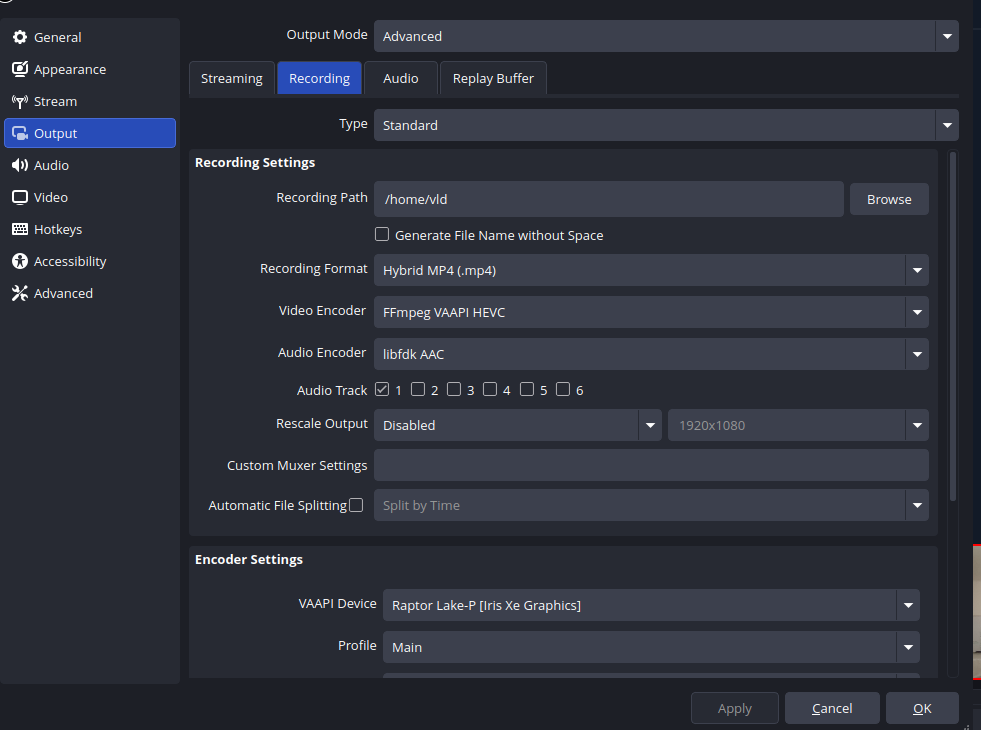
Looks the QSV does not work, need to use the VAAPI This checks if the encoding is there
/opt/intel/oneapi/level-zero/bin/ze_info | head -n 20
vainfo | grep -E "H264|HEVC"
start OBS with the proper setting
export LIBVA_DRIVER_NAME=iHD
export MFX_LOAD_PLUGIN=hw
obs
CHange the encoding in:
File-> Settings -> Output -> Advanced -> recording ->encoder
This setting works, but the microphone quality is very poor probably needs better drivers
Networking tools
Find ip address and other devices on network
sudo apt install net-tools -y
sudo apt install nmap -y
- to get your connections
ip a - to get the other devices
nmap -nm -v <ip-address>/24
Use a VPN like stuff to connect remotely
tailscale:
link
The oneliner does not work for the install, need to scroll down copy codelines from the ubuntu noble
Setup the remote desktop
On the remote machine
gsettings set org.gnome.desktop.remote-desktop.rdp enable true
# set credentials
grdctl rdp set-credentials username password
# start the service
systemctl --user enable --now gnome-remote-desktop
SUprisingly, had issues on the remote Z600 PC since installing there 26.04 Ubuntu so that I had to switch the remote sessions to xfce desktop
sudo apt update
sudo apt install xfce4 xfce4-goodies
cat > ~/.xsession <<'EOF'
#!/bin/sh
exec startxfce4
EOF
chmod +x ~/.xsession
sudo systemctl restart xrdp
sudo systemctl restart xrdp-sesman
this somehow works to revert
exec gnome-session
rm ~/.xsession
On the local machine
Steps:
Open Remmina
New connection → Protocol: RDP
Server: use the Tailscale IP (e.g. 100.x.x.x)
Enter credentials
Working with documents and images
Libre suite (like office)
Installed by default but the default fonts are really ugly
Install the czech language packs for libre office
sudo apt update -y
sudo apt install language-pack-cs language-pack-gnome-cs -y
sudo apt install hunspell-cs hyphen-cs mythes-cs libreoffice-l10n-cs -y
After installing works, but needs to set a new input device in keyboards, add the czech one and change to it (Win+space).
Had some issues with delete not working but closing and opening libre office worked.
Using Microsoft office fonts in Libre office suite
- Find the fonts on internet or your computer in
C:\Windows\Fonts - Copy the files (
.tff) into the Downloads folder
sudo mkdir -p /usr/local/share/fonts/
sudo cp *.ttf *.otf /usr/local/share/fonts/
sudo fc-cache -f -v
this will install the fonts for the libre office (and others?) programs
Note: this may not work unless each font has its own folder(see below for example)
Did not find the aptos font, so downloaded from internet and did following:
sudo mkdir -p /usr/local/share/fonts/aptos
sudo cp *.ttf *.otf /usr/local/share/fonts/aptos/
sudo fc-cache -f -v
Afterwards it works
Pandoc
Tool to convert between different formats of documents
sudo apt install pandoc
sudo apt install texlive-latex-recommended texlive-latex-extra texlive-fonts-recommended texlive-xetex
For some strange reason failed to set it in the ~/.config/pandoc/pandoc.yaml file, so for each conversion need to run:
pandoc --pdf-engine <in> <out>
magick
Tool to manipulate images, create panels etc.
already installed, still in 6th version, is okey(?)
Computer interaction
I need to swap some keys to make the computer better usable from keyboard only:
Get rid of the preset key combinations which would be in conflict
Open Settings → Keyboard → Keyboard Shortcuts
Look for Window Menu
Remove or change the shortcut
INstall keyd
Keyd should enable me to make changes to configuration, runs as a service, is not available in the official ubuntu repository
sudo add-apt-repository ppa:keyd-team/ppa
sudo apt update
sudo apt install keyd
Edit the configuraiton file:
sudo nano /etc/keyd/default.conf
[ids]
*

[main]
capslock = esc
esc = capslock
leftalt = layer(alt_layer)

[alt_layer]
space = enter
q = S-grave
semicolon = backspace
this setting creates a new layer after pressing alt, where space is interpreted as an backspace.
the simple leftatl+space=backspace in main section does not work (tested)
sudo systemctl restart keyd
Optionally, Swapping esc and capslock
Once you have the keyd working, this is not necessary
gsettings set org.gnome.desktop.input-sources xkb-options "['caps:swapescape']"
Websites
To be able to create static hugo website
Install go-lang
sudo apt-get install golang
install hugo
First need to check which version is required for papermod, the ubuntu one may be too old The version needed for PaperMod theeme is >=v0.112.4 (26/12/2025) link
which hugo # tells you if installed
if not installed:
hugo
outputs the options, which could be installed, apt version (0.123.7-ubuntu0.3) is older then recomended on hugo website , so better to install the snap version: 0.0152.2
sudo snap install hugo
Copying files etc
File manager single pane
The default file viewer Nautilus has a feature, where you can open folder in terminal, or create a new folder when you click right mouse button.
Unfortunately, this for some reason only works when the view mode is as icons and there is an empty space.
In the List view (which I prefer), there is no empty space, so you cannot do it and need to use the F10 key to open the context menu on the top and then navigate to creating a new folder or opening default location in terminal.
So I decided to install Dolphin, which does not care if you are in Icons or List mode
Check that you are running wayland (because that is what I have)
echo $XDG_SESSION_TYPE
echo $WAYLAND_DISPLAY
The output should contain wayland
Update system and install Dolphin and its terminal emulator
sudo apt update
sudo apt install dolphin -y
sudo apt install konsole -y
Test if DOlphin runs
In the terminal run
dolphin .
This should open the current directory in dolphin to test the functionality.
For example the F4 key should open bottom half pane with a command line, which follows the directories you are in.
Looks useful to me.
Make Dolphin default
xdg-mime default org.gnome.Nautilus.desktop inode/directory
- Press “windows” key and select Dolphin, should open the application
- Its icon should appear on the dock on the bottom (or wherever you have your dock)
- Right click the icon in the dock and select pin to dash
- Look for the icon of nautilus on the dock and if its there remove it
- Make changes to the setting of Dolphin (when running in GUI) in the top right menu
Remove
sudo apt remove dolphin konsole
sudo apt purge dolphin konsole
# set Nautilus to be the default again
xdg-mime default org.gnome.Nautilus.desktop inode/directory
File manager two panes like total commander
sudo apt install doublecmd-qt
- works
- looks really ugly but changing the fonts and making the icons smaller works somehow
- Added the treeview on the left side, super useful
- changed the default editor to vim
Clipboard
sudo apt install wl-clipboard
to use it redirect the SOUT into wl-clipboard
pwd | wl-copy
This puts the current directory path into clipboard Would be great to give it a better alias
Clipboard manager copyQ
a clipboard manager which can store more then just one item
- I can for collect several screenshots and then paste them in a document
- Collect several chunks of text, edit them and then save/copy them somewhere else
Installation
sudo apt update
sudo apt install copyq
Usage
Start copyQ from the app center.
Little green and white scissors will appear on a top right.
Right click and select show/hide for it to appear.
Check/change the settings so that it accepts pictures and the formats you want.
Change the settings so that it does not disappear when in focus.
Now you can Ctrl+V inside the window images, text etc. Is also possible to split it in tabs and search, which I did not use yet.
The disadvantages as for now:
- making a screenshot does not immediatly saves it to there, need to go there and Paste in the tab I want
- Once you open any other window, disappears, probably some more settings needed
However, still pretty useful with features from the command line etc, but no time for it today
Motivation
I would like to switch to linux in order to make several improvments in quality of my work
- Better searching for files (the default windows experience with search is terrible, search in terminal is both much faster and detailed)
- Working with video from the command line
- Web content creation using the hugo
- Backups
- Bioinformatics (working with virtual environments and docker containers for R)
- Own bash scripts
Linux distribution
I decided to use Ubuntu 24.04 as it is the most common distribution so it should be the easiest to get help from the internet and also make it easier for other people to adopt the same system. However I am aware I will need to run the microsoft office suite (I like the desktop version) and some other software which may not work through the compatibility layer, so I would like to have the virtual machine with a windows inside linux. This could fail through the inability to share and work on presentations, present at conferences and inability to connect to online meetings without hitches.
Resources
Installing windows 11 in virtual machine
Hopefully, most likely obsolote, winboat seems to solve this problem
sudo apt install virtualbox virtualbox-guest-additions-iso virtualbox-ext-pack
Installation works, now need to get the windows ISO
Additional installed programmes
General linux
- vim
- neofetch
- curl
- venv
- git
- okular
- openVPN
- eduVPN
- samba
- tailscale
- borg
- hugo
- go-lang
- ffmpeg
- pandoc
- magick
- fzf
- scp
- rsync
- vlc
Remaping keys keyd
git clone https://github.com/rvaiya/keyd
cd keyd
make && sudo make install
sudo systemctl enable --now keyd
Biology should run under linux
- R
- R Studio
- ImageJ
- Cell Profiler
- csvkit
- zotero
Windows applications running through the compatibility layer
- GraphPad
- FlowJo
Windows applications running through a virtual machine with windows
- Microsoft Powerpoint
- Microsoft Excel
- Microsoft Word
- Zen from ZEISS
Working with containers
- Distrobox
Applications running in containers from distrobox(?)
- R for bioinformatic (conductor)
- R studio
- brave
- OBS
- Audacity
- yt-dlp
Things which need to be working
Printing
Using the local NAS
Email client
Video-conferencing
Audio
Had a bad sound quality when recording, got fixed by
- reducing the microphone input to 30%
- adding a filtering out module
This was initially done using commands from terminal, to reduce mic gain, recording sound and replaying it:
arecord -f cd test.wav
aplay test.wav
alsamixer # this enables changing the mic gain
Then i tried easyeffects, did not really work
Settled on using the pipe-wire modules running as a service(??)
[Unit]
Description=Microphone noise and echo cancel fix
After=pipewire.service pipewire-pulse.service wireplumber.service

[Service]
Type=oneshot
ExecStart=/bin/bash -c 'sleep 8 && pactl unload-module module-echo-cancel 2>/dev/null; pactl load-module module-echo-cancel aec_method=webrtc source_name=mic_clean sink_master=alsa_output.pci-0000_00_1f.3.analog-stereo use_master_format=1 && pactl set-default-source mic_clean && pactl set-default-sink alsa_output.pci-0000_00_1f.3.analog-stereo && pactl set-source-volume alsa_input.pci-0000_00_1f.3.analog-stereo 30%'

[Install]
WantedBy=default.target
into:
nano ~/.config/systemd/user/micfix.service
needs enabeling and starting the service
sudo systemctl enable micfix.service
sudo systemctl start micfix.service
Works well, works with obs and works for videoconferencing too
- Microsoft Teams
runs well with Teams for linux snap installed
Google meet
runs well from the browser
- Zoom
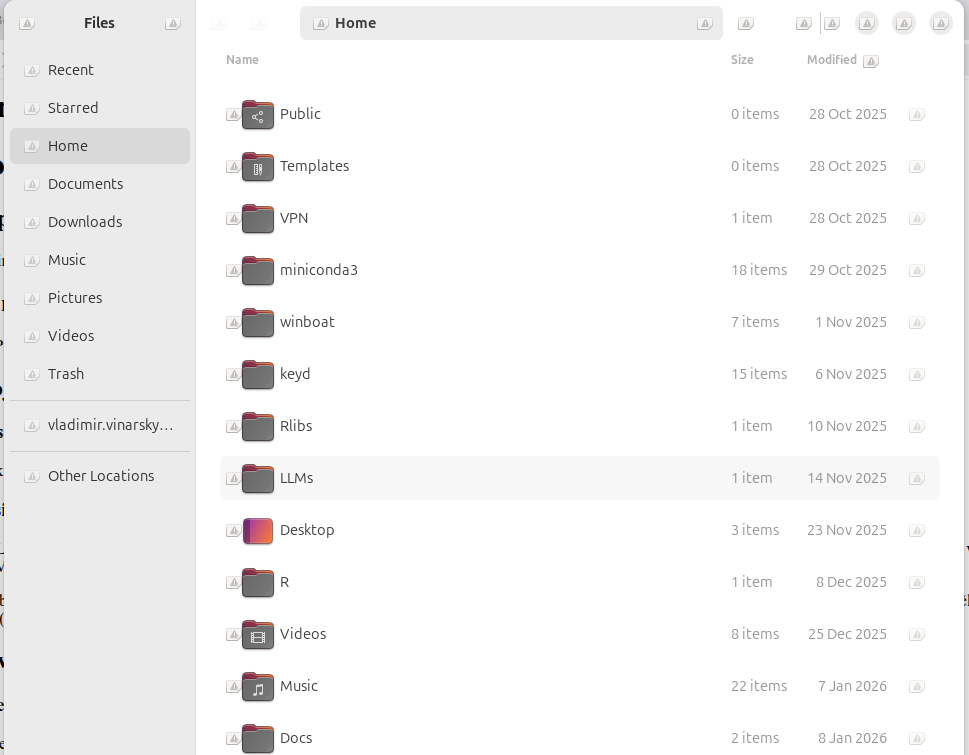
Important fuckup lesson installing qcad from .run file
-
Downloaded the qcad installer from the website
-
Run it using
sudo bash qcad...run -
Lost all icons and terminal
-
needed to start terminal with
Ctrl+Alt+F3 -
By switching between terminal and gnome desktop
Alt+F2installed the icons again
This is the file I run in the terminal
#!/bin/bash

sudo update-mime-database /usr/share/mime
sudo gtk-update-icon-cache -f /usr/share/icons/hicolor
sudo update-desktop-database
NOTE:
Never run installation file with .run with sudo privileges and check if it exists in a repository native to ubuntu
System Backups
Installed timeshift, not used yet
Timeshift
Is installed set to back up bi-weekly
List snapshots
sudo timeshift --list
See configuration
cat /etc/timeshift/timeshift.json
Restore previous snapshot
sudo timeshift --restore
prompted to select the backup with a date, and reinstalling grub, selected 0, not the second, which is a partition, not the disk
Worked well
Installed preload to speed loading of applications
installed tldr
Wineboat to run windows in a container
should be better than running windows in VM link
Works well, but when stopped working had to change the image version of windows in the docker compose file to 5.16
~/.winboat/docker-compose.yml
name: "winboat"
volumes:
  data:
services:
  windows:
    image: "ghcr.io/dockur/windows:5.16"
    container_name: "WinBoat"
    environment:
Set the dns to google, cloudflare to speed up internet
ipv4 and ipv6 for cat75 hotspot